"File" - Backstage Menu
The File Menu is the backstage and starting view of Roast Architect. From the backstage you are able to open Roast Architect files, adjust the program settings, access user account settings, or access this help guide. The Back Arrow Button will take you back to the Home screen.
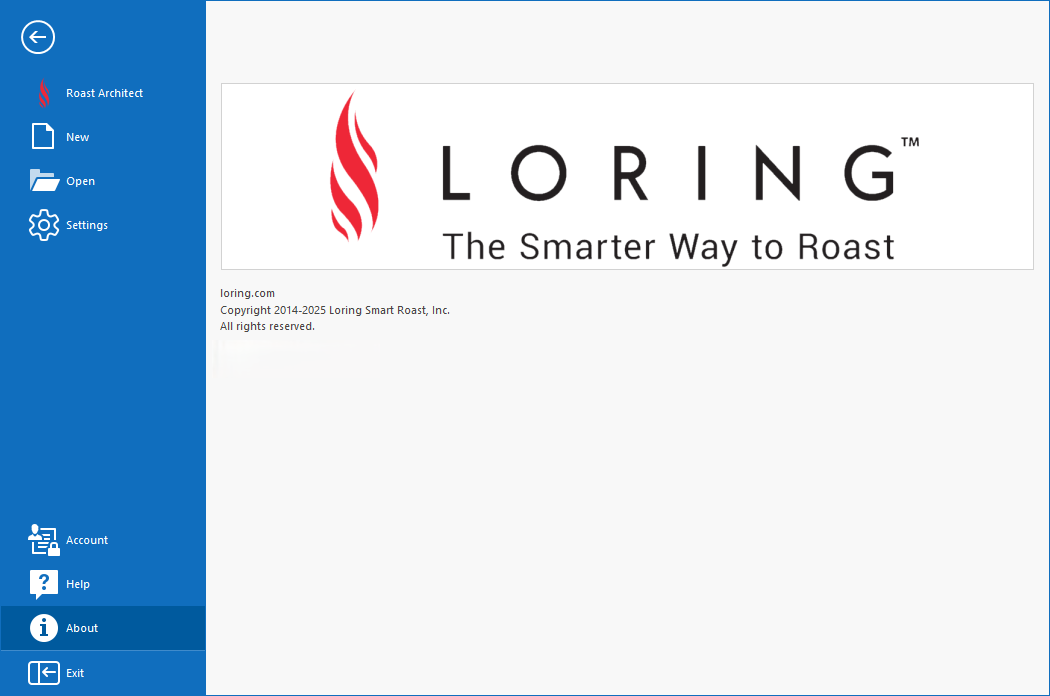
View of the Roast Architect Backstage File menu.
File Menu
Roast Architect's primary function is to open, create, and edit Profiles and Products files for Loring Roasters.
Recent Files
- Select Roast Architect from the File Menu
- Select a recently opened file to open the file. Profiles will open in the Profile Review Screen, with editing disabled
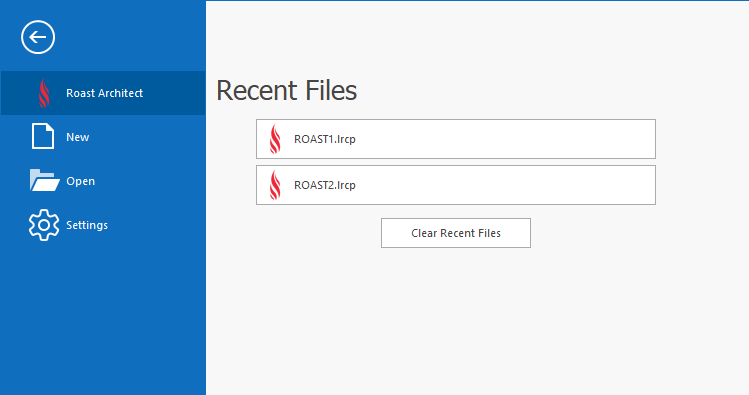
View of the Roast Architect Recent File menu.
Creating a New Profile
One of Roast Architect's primary functions is to create Profiles. See the Quick Start Guide to Create a New Profile
Creating a New Products File
Products files are lists that will populate the Product field on the Roaster. The Product specified at the start of a roast will display on the Roaster screen during the roast, and be included in the Post-Roast Notes.
See the Quick Start Guide to Create a New Products File
Open a File
Roast Architect can also open and edit existing files from the local computer.
See the Quick Start Guide to Open a Local File
Roast Architect Settings
Use the Roast Architect Settings to set preferences and control some of its features. These Settings only effect Roast Architect's operation and do not impact any Roasters on the network.
- From the File Menu, select Settings
- Select Theme to switch between Light Mode and Dark Mode
- Select Mass Units to designate the mass units for all Roast Architect reports and editors. The choices are lbs. and kg., with lbs. as the default
- Select Temperature Units to designate the temperature units for all Roast Architect reports and editors. The choices are Fahrenheit and Centigrade, with degrees Fahrenheit as the default
- Select Conversion to designate the number of Anchor Points that will be used when opening a Roast Profile in Roast Architect for the first time

Account Page and License Management
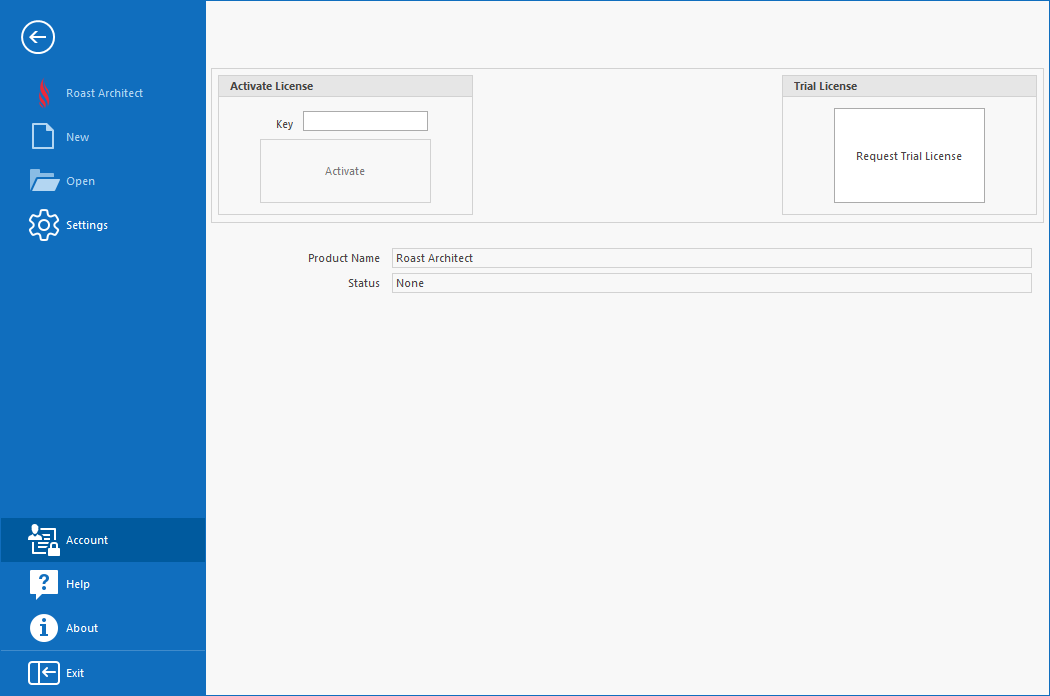
The Account screen allows for the activation of Roast Architect via entering the Key for a purchased Roast Architect license. When activated, this screen will show additional information regarding the status of the license.
To activate a purchased Roast Architect license, enter the License Key and click Activate. For more detailed instructions, see User License.
Help
The Help Menu contains access to this help guide.
About
The About page shows additional details about Roast Architect.
Exit
Closes Roast Architect.