User License
License Activation
Roast Architect requires a license to activate and operate. If you encounter issues with the purchasing or activating processes outlined below, please contact Loring Support.
Purchasing a License
Note that purchasing a subscription license activates a two-week trial period, during which your license purchase can be canceled with no charges made to the payment method provided.
- Navigate to Loring Smart Roast Software Checkout to add licenses to your cart.
- Provide your Name, Company, Email, and payment method.
- You will receive an email containing your License Key, a link to a web-page where you can download the program, and a link to this document.
- Install Roast Architect.
Note: You may encounter prompts to install the following frameworks, with links to download them from a Windows web-page. No additional purchase is required.
ASP.NET Core 8.0 Runtime (v8.0.12)
.NET 8.0 Desktop Runtime (V8.0.12)
- If you purchased a subscription, the email will also contain the amount charged, which will be 0 during the two-week trial. There will also be a link to manage your orders, allowing you to login to Fastspring and view your subscriptions. You will also receive a second email which will explain the renewal policy for the subscription, the date and amount of the next charge to your payment method, and a link to login to Fastspring and manage your subscriptions, as well as view your License Key.

Fastspring login
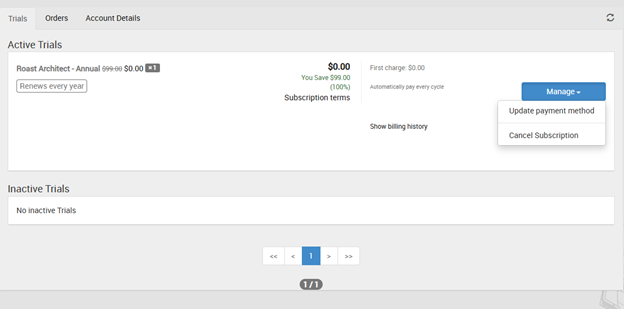
Subscription management in Fastspring
Activating a Purchased License
Users who have purchased a license can activate the full version of the software using their unique license key. To activate a purchased license:
- Navigate to the Account page via the Backstage Menu.
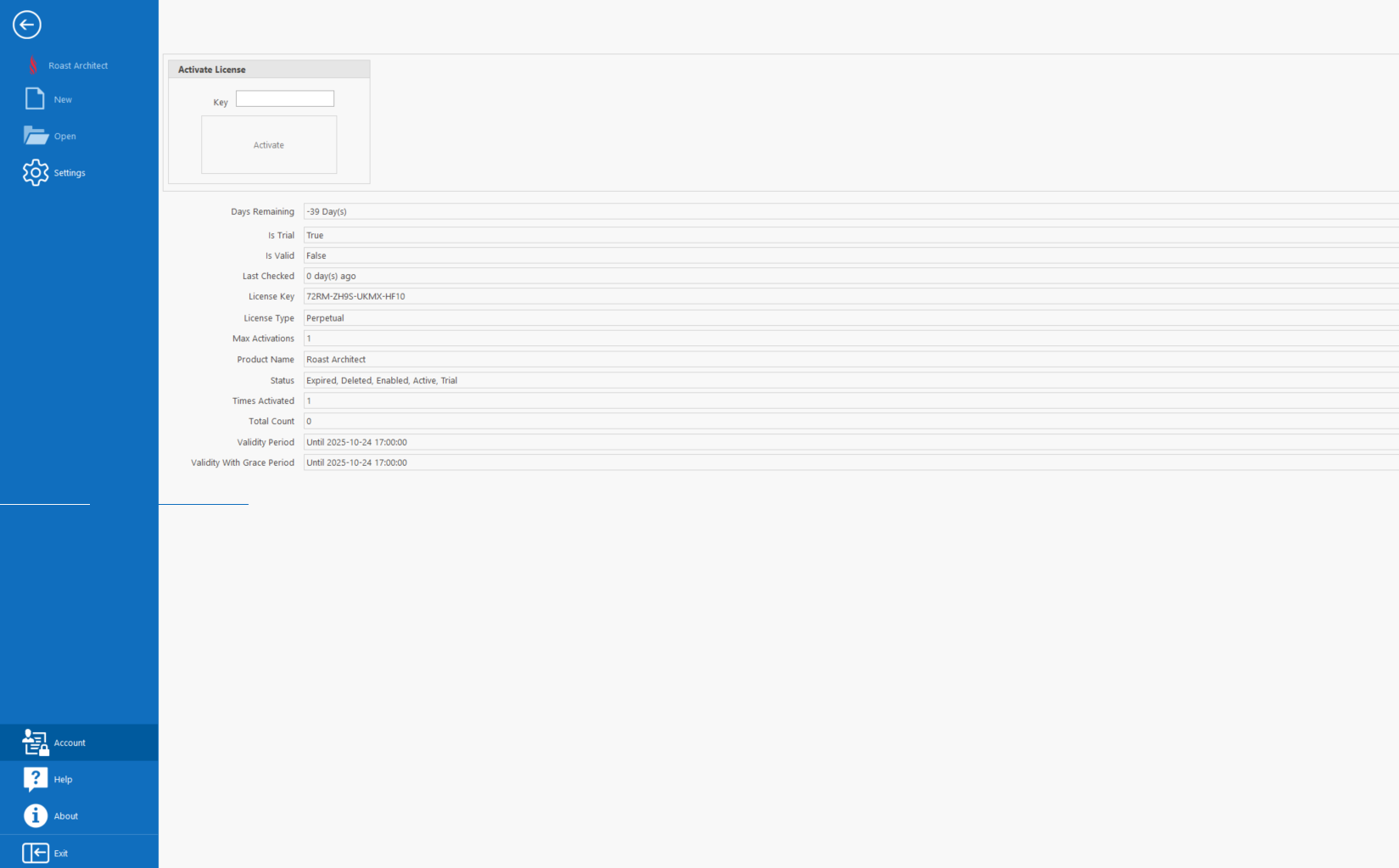
- Enter your License Key in the designated input field.
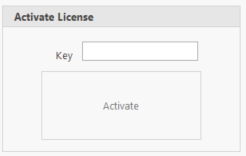
- Click the "Activate" button.
Upon successful validation, the software will unlock all features for the duration specified by the license terms.
Tip: Ensure you have a stable internet connection during activation, as the license requires online verification.
The Days Remaining field will display the remaining time for which your license is valid.
Application Operation with License Authentication
In order to authenticate the user license, Roast Architect must be able to connect to the license server via the intranet. To allow flexibility in the use of the software, once authenticated, the license will remain active offline for a period of time. To check the time remaining before Roast Architect must re-authenticate with the license server check the License Management page for the Validity with Grace Period time period.

Grace Period