Roast Architect User Interface
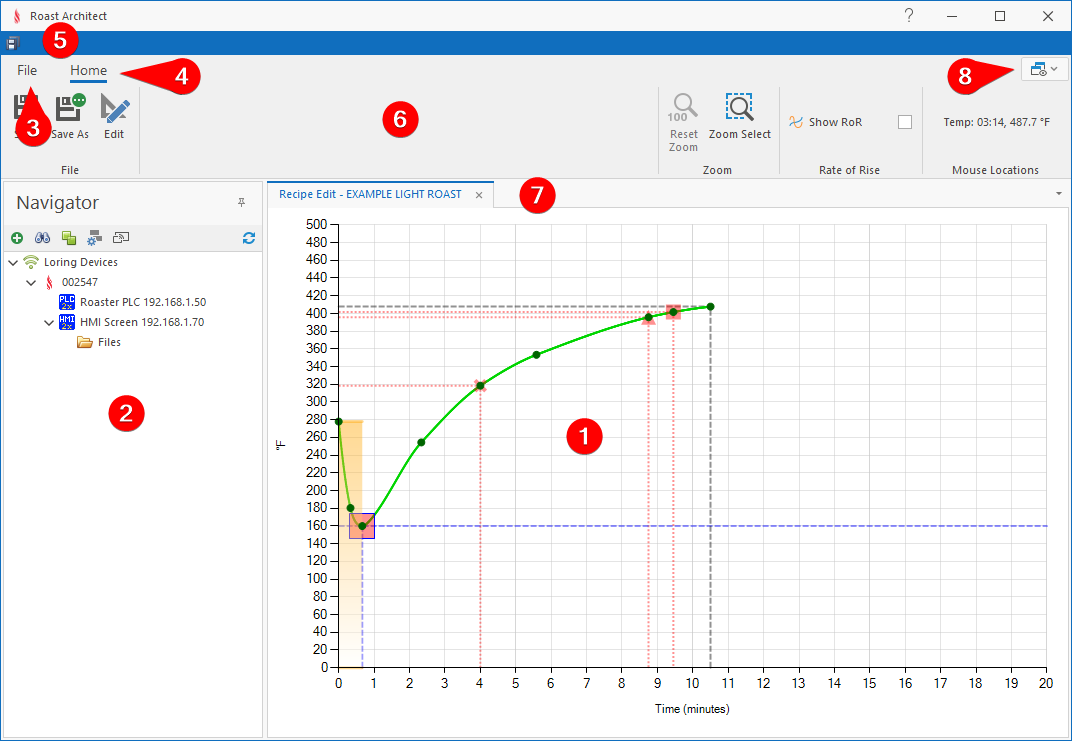
Editing View of the Roast Architect user interface
1. Edit View
- View and Edit Roast Architect files
- Tab Docking (Click + Drag) to snap editors to window
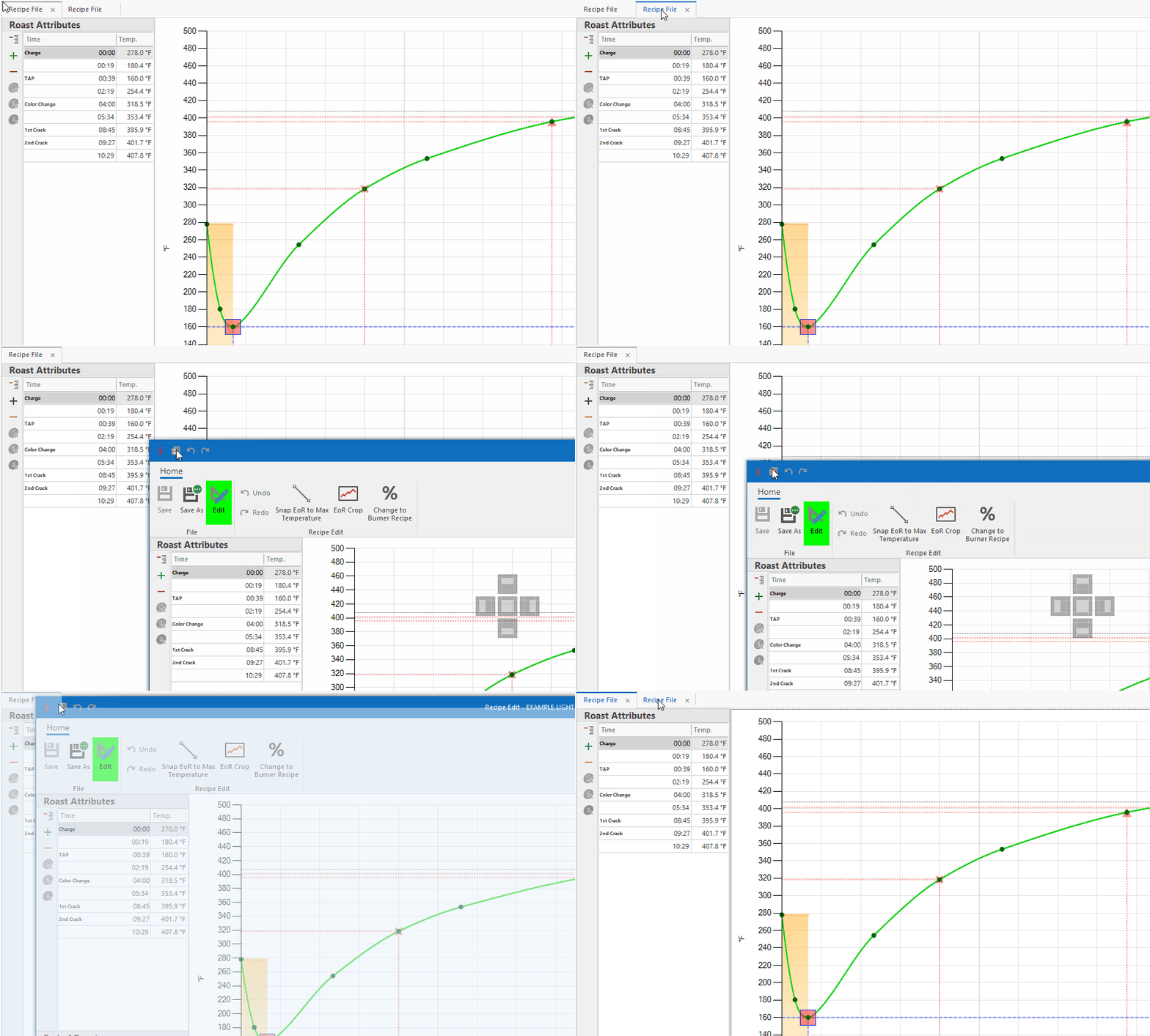
Undocking, and Docking, a File tab
- Docking Hints to Auto Dock and Resize Windows. Hovering over a Docking Hint and releasing the Mouse button will automatically snap and resize the tab in the program window.
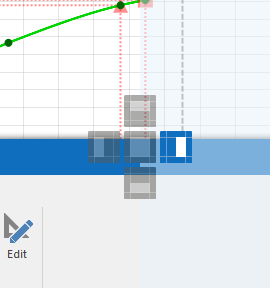
Tab Docking Hints
2. Navigator
- Search for, and Connect to, Loring Roasters
- Upload/Download Roast Architect Files to a Loring Roaster
- FTP access to Loring Roaster Files via File Explorer
3. File menu
- Recent Files
- Manage Profiles: create new, open existing
- Manage Products: create new, open existing
- Access the application options
- Account Details
- Access to help files
- Exit the application
4. Home Menu
- Edit Roast Architect Files
5. Quick access tool-bar
- Access to frequently used actions such as "Save", "Undo", and "Redo"
6. Ribbon tool-bar
- Contains all command buttons available for editing within Roast Architect
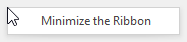
- The Ribbon can be minimized by right clicking and selecting Minimize the Ribbon. To maximize the Ribbon, click Home, right click on the Ribbon, and click Minimize the Ribbon again to deselect it.
- The Ribbon Bar content will change according to the currently focused file type and Edit mode.
- Roast Profile
- Burner Recipe
- Products File
7. Tab Bar
- Select and organize open Roast Architect files
- Undock/Dock files from application window (Click + Drag)
- Selecting a tab will display its associated content for editing
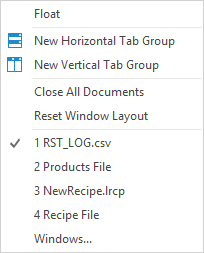
8. Docking Functions
- Additional tab docking functions
- Group and distribute windows