Release 2.2.9607
New Features
Import a File
Use these tools to import roast profiles from a different roasting historian. Read the quick guide on this feature here.
Adjust your program settings to select the number of anchor points created during import. This affects the number of points created when generating a roast profile from raw data from all sources, even the first time opening a roast from a Loring roaster.
"Save" Behavior While Editing Online
When editing a profile online, the "Save" button will directly save the current profile to the roaster, updating the remote file. This allows a designer to make quick changes. The Remote File Ribbon indicates when the file has been saved on the roaster.

Roast Comparisons
Compare Original
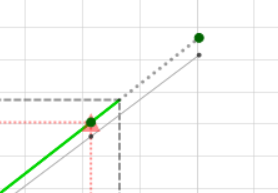
Enable this feature to display the as-opened historical profile alongside the edited profile. This can be used to inform a roast designer what changes have been made to the profile during editing. "Update on save" forces the historical profile to update to the current profile each time the Save control is used.

Compare to External Recipe
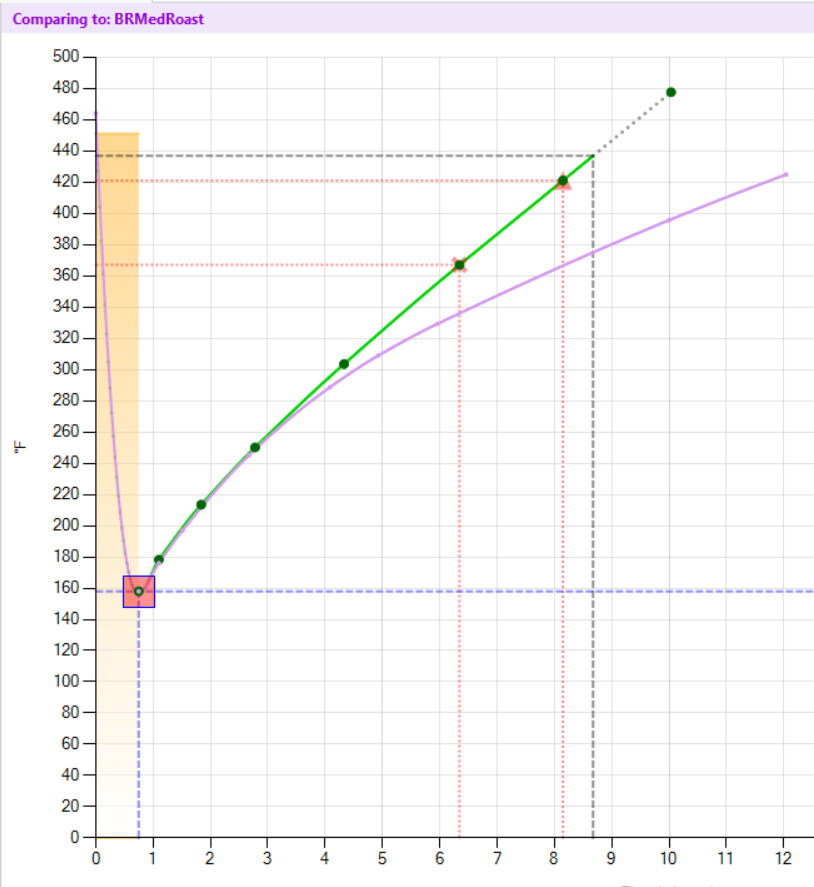
The new feature "Compare External (Ext.) Recipe" allows a designer to display (in purple) a second profile in the editor window, for comparison to the profile being edited. The comparison profile will not be affected by the editing process.

End Of Roast Profile Display
If you set the End of Roast Temperature to less than the final Profile Recipe temperature, the profile line turns into a dashed line to indicate that the profile will only run to the EoR Temperature.

Charge to TAP Profile Display
The Initial Burner Setting is indicated on the graph with an orange shaded area. The profile time between Charge and TAP is displayed as a dashed line to denote that the roaster is not following the profile until after the TAP.
