Modify an Existing File on a Roaster
This quick guide will describe how to open an existing Profile or Products File from a Loring Roaster, edit the file, and save the modified file directly onto the Roaster.
Open the File
- The Loring Roaster must be connected to Roast Architect. For direction, see Navigator Panel
- Use the Navigator panel to locate the Loring Roaster
- Expand the drop-down of the Loring Roaster in the Navigator Panel
- Expand the FILES tree and find the file
- Double click the file, or right click and select Open
- The File will be highlighted blue, indicating that it is open in Roast Architect. The Quick Access Bar will display the file name preceded by Remote File, indicating you are editing the file on the Roaster
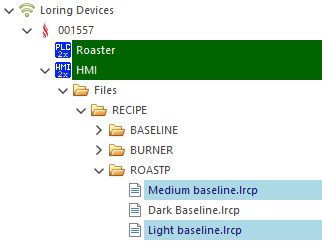
Opened Remote Files
Edit a Remote Profile
- Enable Editing with the Ribbon Toolbar

- Make any modifications to the Profile using the Editing Tools.
Save the File

- When working with a file opened directly from a Loring Roaster, the Save ribbon bar function will save the changes to the Roaster's file directly, overriding the file that is on the Roaster. This allows a designer to make quick changes. The Remote File Ribbon indicates when the file has been saved on the roaster.

- Save As will open the File Explorer to save a new copy on the local computer. To then upload the file to a Roaster, see Upload a File to a Roaster
A Profile will be saved with the file type that corresponds to the Edit mode toggled at the time of saving (either Roast Profile or Burner Recipe) and this file type may influence its file location when uploaded to a Roaster.