Burner Recipe
Burner Recipe
Burner Recipes are automated burner schedules triggered by bean temperature. Each specified burner setting activates after the bean temperature surpasses its corresponding trigger point. A Burner Recipe includes two sequences: temperature triggers (yellow bars) and burner settings (blue bars). Every burner setting must have a matching temperature trigger for proper operation.
As the roast progresses, each trigger point activates its burner setting in order, continuing until burner value reaches zero. From there, the system maintains operation until the End of Roast temperature is reached.
A Burner Recipe is generated by a Loring Roaster when operating in Manual operation mode, and each burner setting modification during a roast will be saved with its corresponding trigger temperature. When a Burner Recipe is saved from a manual roast, the file also contains a Roast Profile recorded from the bean temperatures during the roast. Modifying the Burner Recipe does not alter its associated Roast Profile, and vice versa.
The Profile will be saved with the file type that corresponds to the Edit mode toggled at the time of saving (either Roast Profile or Burner Recipe) and this file type may influence its file location when uploaded to a Roaster.
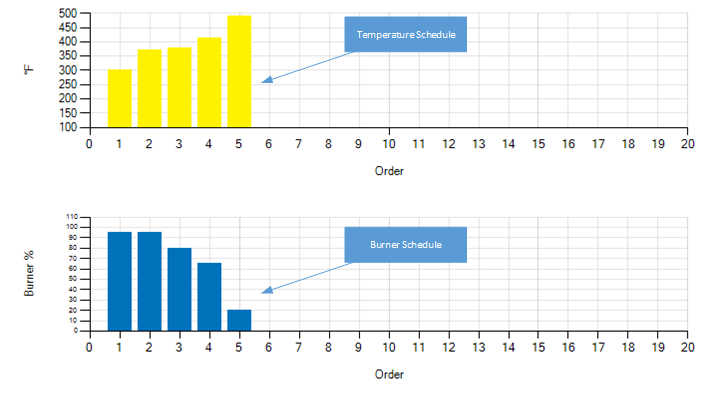
Viewing a Burner Recipe
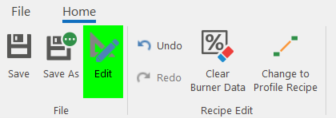
To view a Profile, load it from the local hard disk or from the HMI screen into Roast Architect, or create a new Profile. The screen should look like the one shown below. Opening a Profile may show the Profile editor in a view-only mode. The Profile and its attributes cannot be edited in this mode. Click Edit to enable editing.
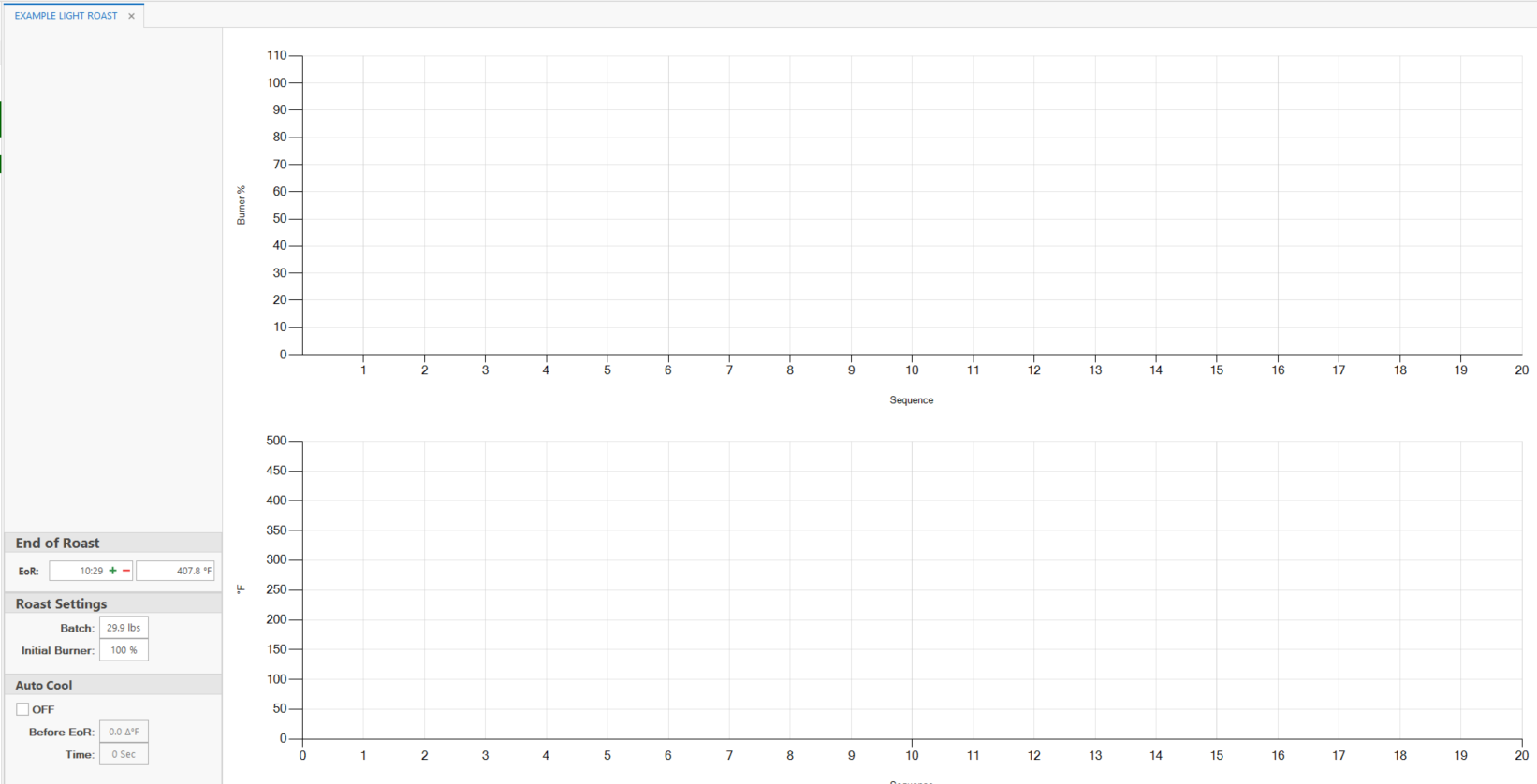
New Burner Recipe with Editing enabled
Roast Attributes
For information about the Roast Attributes, see Attributes.
The EoR point, Roast Settings (Batch and Initial Burner Setting), and Auto Cool settings can be edited from the Burner Recipe editing page.
The other attributes (expected TAP, color change, and 1st and 2nd crack) can be modified by clicking Change to Profile Recipe.
Clear Burner Data
Deletes all Burner Recipe Trigger Points
Change to Roast Profile
If the roast is to be designed as a Roast Profile, click Change to Profile Recipe.

The Burner Recipe attributes and Trigger Points will all be saved during a conversion to editing as a Roast Profile.
The Profile will be saved with the file type that corresponds to the Edit mode toggled at the time of saving (either Roast Profile or Burner Recipe) and this file type may influence its file location when uploaded to a Roaster.